
In our last blog we talked about Uniclass. Following on from that, we’re here to discuss exporting; what are the most common formats, when to use them and what to watch out for. We already briefly touched on this in the previous instalment of our Masterclass series, so let’s take a deeper dive into the world of exporting!
First things first, let’s look at why exports matter in BIM workflows
It might seem obvious but exporting BIM models is a crucial part of any project workflow. Clients want a usable model and exporting plays a large part of that. Different stakeholders require different formats whether that is IFC, RVT, NWC or DWG, and understanding the different export types helps to ensure smooth coordination.
It’s important to ascertain which format is required before modelling can start as at the end of the day, BIM isn’t just about creating a 3D model – it’s about sharing information. We don’t want to spend a lot of time working on something that won’t end up being used because it’s incompatible with the receiving clients software. Poor exports can lead to clashes, misinformation and (costly) rework. Having a clear idea of the eventual export format at the start of the project can save everyone a lot of time. The export format affects everything from model fidelity to geometry accuracy and data richness.
Understanding common BIM export formats
Let’s run through the most common export formats along with their pros and cons.
First up we have Revit Native Formats (RVT & RFA):
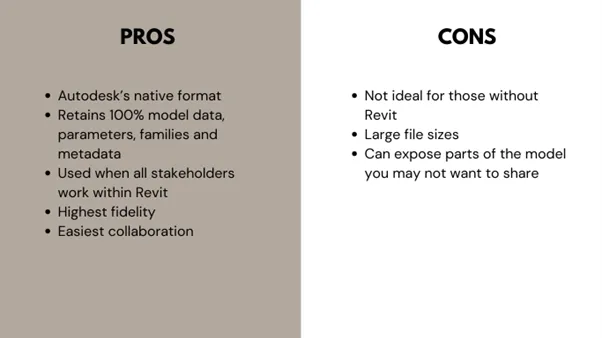
When to use: Revit formats are great for internal team collaboration, or when working with consultants also using Autodesk products.
For 2D focused exports we have DWG/DXF:
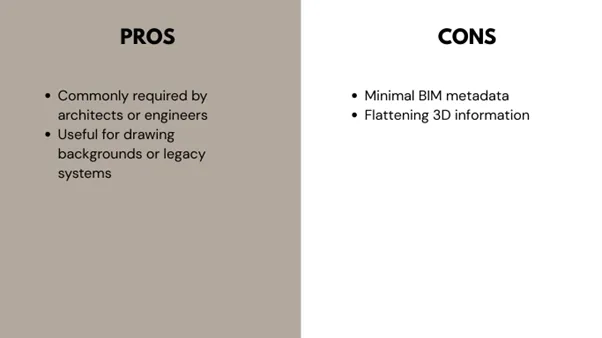
When to use: DWG would be used when drafting workflows or working with external consultants relying on CAD.
Additionally, 3D DWG/DXF can also be used:
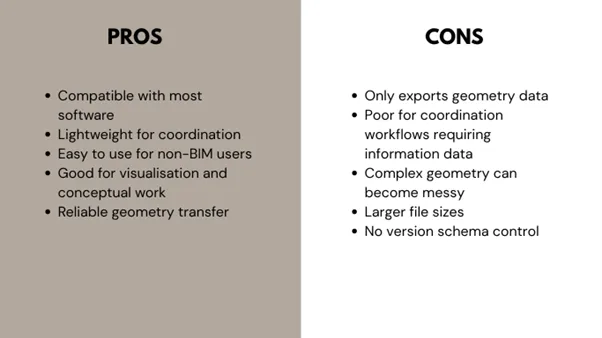
When to use: 3D DWG/DXF is useful when a universally compatible 3D geometry-only format is needed. It retains shape and form but contains very limited data, making it suitable for visual coordination or import into a wide range of modelling and analysis tools.
Thirdly, let’s talk about PDF (2D or 3D):
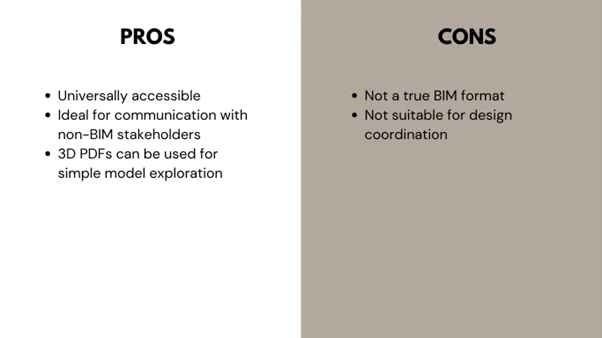
When to use: PDFs would be great when used for client reviews, tender packages, or just simple visual referencing.
Finally we have IFC (Industry Foundation Classes) and Navisworks:
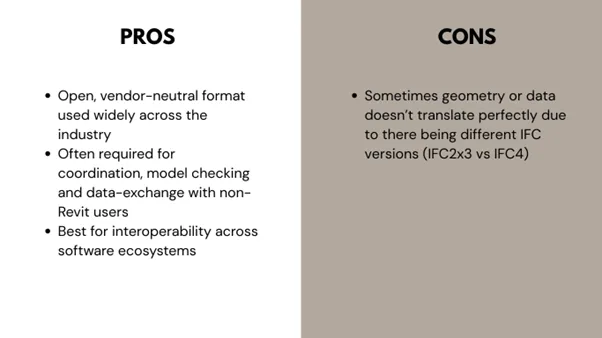
When to use: IFC is ideal when dealing with client mandates, open BIM environments, Solibri/BCF workflows.
Navisworks (NWC & NWD):
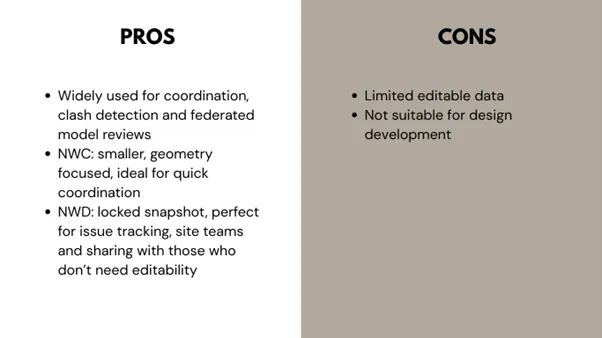
When to use: Navisworks is great for coordination meetings, clash reporting and construction planning.
What are the key considerations before exporting?
There are four main things to consider before we export. First, we need to understand the BEP (BIM Execution Plan). Just like how we talked about deciding on how to approach Uniclass updates in our last blog, it’s important to map out in the BEP the required formats, naming conventions, versions and data expectations before starting on a project. We also want to ensure compliance with the EIR (employers information requirements).
Secondly we need to discuss the Levels of Detail (LOD) and Levels of Information (LOI). Before choosing the export format, communicating with the final client how required detail may vary depending on the export stage is crucial. We don’t want to be under-sharing or equally over-sharing!
Which leads us nicely onto our next consideration; model clean-up and preparation. We don’t want to be sharing any unnecessary information upon exporting so it’s important to purge unused content, hide any unneeded elements, check the coordinates and shared site settings and validate the model with tools like Solibri or Navisworks before exporting.
The final point to consider is in regards to data mapping and property sets. For IFC exports, ensure that parameters are correctly mapped and verify that custom parameters are included if needed.
Common pitfalls and how to avoid them
Exporting BIM models seems straightforward until something goes wrong, and most issues only show up after files have been shared with clients or consultants. Below we lay out the most common export pitfalls, why they happen and how to avoid them.
Why? There can be a range of reasons why this happens. The most common are that the custom parameters aren’t mapped to IFC property sets, shared parameters aren’t included in the project, there has been inconsistent naming across families or the export settings weren’t aligned with the BEP.
How to avoid: Ensure parameters are mapped properly; when using IFC check your IFC mapping settings and assign customer parameters to the correct IFC property sets. Use consistent shared parameters across families to avoid missing data on export. Test export early in the project to catch missing metadata before deadlines hit. Refer to the BEP and EIR to ensure all required data fields are included.
Why? Model misalignment is one of the most common and most disruptive problems in BIM coordination.This can happen when shared coordinates haven’t been set correctly or civil/architectural models use different reference points. It can also just mean the exports have been done from the wrong internal origin.
How to avoid: Set up shared coordinates at the start of the project and lock them down, document the coordinate system in the BEP so it is accessible for all teams to follow. Ensure you include a coordination view that shows grids, levels and survey points to validate alignment. And finally, verify coordinates before exporting (especially on multi-disciplinary projects!)
Why? There are three reasons why this can happen. IFC exporters can convert elements to generic geometry, complex Revit families may lose detail or appear distorted or some organic or parametric shapes may not translate well.
How to avoid: Where possible use IFC4 rather than IFC2x3. It improves geometry handling. Likewise, use official IFC exporters from Autodesk or BuildingSMART. Simplify overly complex families before exporting and test key components (like facades or MEP equipment) to confirm they export correctly.
Why? Often this happens because there are unused or hidden elements remaining in the model. CAD links, point clouds and heavy families can also increase export size or the export settings themselves include unnecessary geometry or metadata.
How to avoid: This one is a fairly simple one. Make sure you are exporting only what’s needed, use lightweight view templates, detach and remove unused links and compress PDFs and IFCs if sending to non-technical stakeholders.
Why? Different project teams may use different versions of Revit, Navisworks or IFC schemas causing files not to open or to lose data.
How to avoid: Lock software versions in the BEP at project start and ensure there are no mid-project upgrades. Confirm export schemas (IFC2x3 vs IFC4) with all stakeholders. Trial exporting early to ensure compatibility. If teams work across different Revit versions, provide NWC files as they act as a stable coordination format.
Our top tips for better BIM exports
So there you have it. Good exports ultimately mean better communication, fewer clashes, and more efficient workflows, no matter the project size or discipline involved.
Choosing the right export format isn’t just a technical decision, it’s a fundamental part of ensuring that your BIM data arrives clean, usable, and aligned with stakeholder expectations. When we get exports right, collaboration becomes smoother, coordination issues reduce, and project teams can focus on delivering value rather than troubleshooting avoidable problems.
If you’ve got questions about export formats, have run into challenges on live projects, or simply want to ensure your workflow is set up for success, we’d love to chat.
Reach out to the team at hello@adaptivebim.com to discuss your project requirements further.